Introduzione
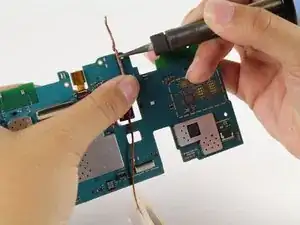
Se il tuo tablet non si carica e hai verificato che il tuo caricatore funziona correttamente, potresti doverne sostituire la porta di carica.


Ricambi
-
-
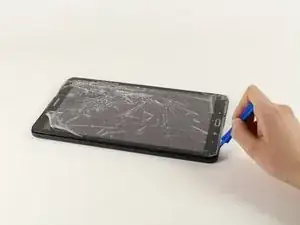
Appoggia il dispositivo con lo schermo rivolto verso l'alto.
-
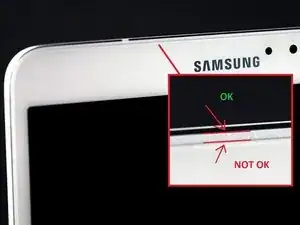
Inizia vicino ad uno dei bordi curvi del dispositivo(usa la seconda immagine come esempio).
-
Infila uno strumento di apertura in plastica tra la copertura posteriore e quella anteriore.
-
-
-
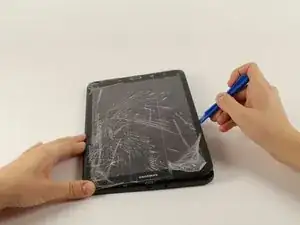
Una volta che lo strumento di apertura in plastica è stato infilato, usalo per fare leva lungo i bordi del dispositivo per separare la copertura posteriore.
-
Rimuovi la copertura posteriore dal dispositivo.
-
-
-
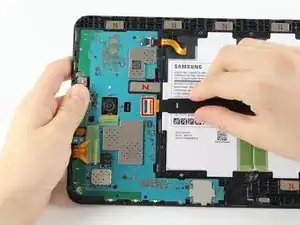
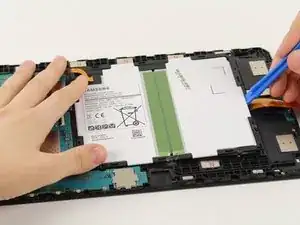
Rimuovi la protezione adesiva e ruota verso l'alto l'aletta di bloccaggio sul connettore ZIF della batteria.
-
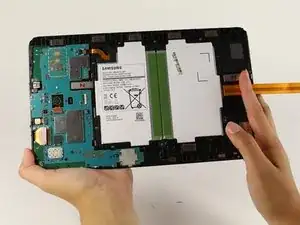
Sfila il cavo a nastro arancio della batteria dalla sua presa.
-
-
-
Rimuovi la protezione adesiva, solleva l'aletta di bloccaggio e sfila il cavo a nastro bianco dello speaker dalla sua presa.
-
-
-
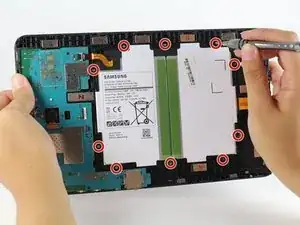
Usa un cacciavite a croce Phillips #000 per svitare le dieci viti da 4 mm attorno alla batteria.
-
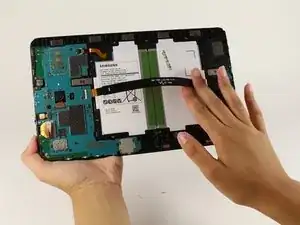
Infila uno strumento di apertura in plastica sotto il bordo inferiore della batteria vicino allo speaker e sollevala.
-
-
-
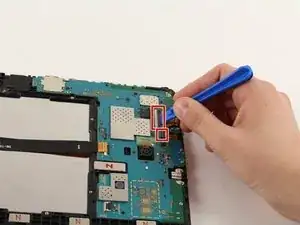
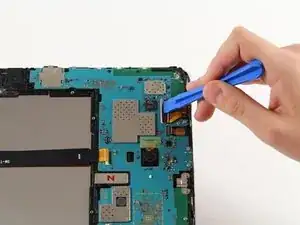
Ruota verso l'alto le due alette di bloccaggio sui connettori ZIF con uno strumento di apertura in plastica.
-
Sfila i cavi a nastro arancio dalle loro prese.
-
Rimuovi la fotocamera anteriore.
-
-
-
Scollega la presa jack dalla scheda madre.
-
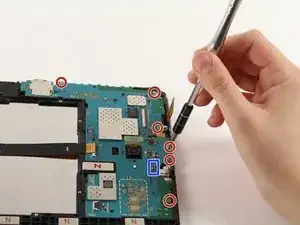
Usa un cacciavite a croce Phillips #000 per svitare le sei viti da 4 mm.
-
-
-
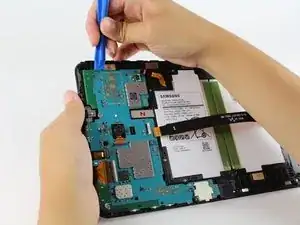
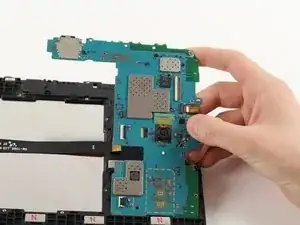
Infila lo strumento di apertura in plastica sotto la scheda madre, sollevala e rimuovila dal tablet.
-
Rimuovi il supporto in metallo che stava sotto la porta di carica e mettila da parte.
-
-
-
Ripeti il passo precedente per gli altri tre fori.
-
Solleva la porta di carica in metallo dalla scheda madre.
-
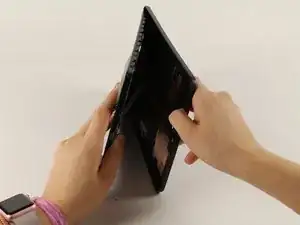
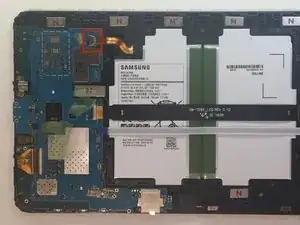
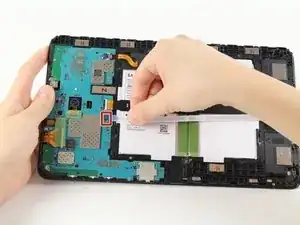
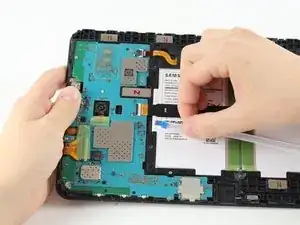
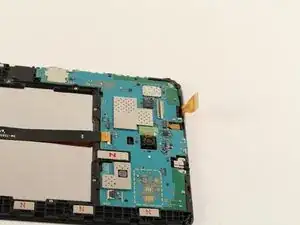
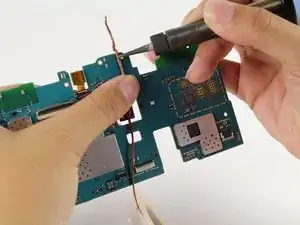
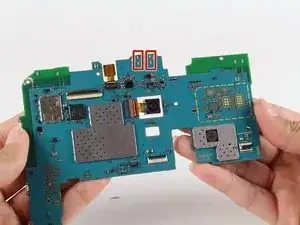
Per rimontare il dispositivo, posiziona la nuova porta in metallo dove era l'originale e saldala sul lato corretto della scheda madre nei quattro fori appositi.

13 commenti
It is impossible to unmount the old damaged USB-Interface this way. Beside the four solder-points ist is also soldered to 5 extremely small points on the motherboards opposite side. These are SMD-mounted contacts and in my case trying to unsolder them damaged the motherbords layout.
I was able to desolder it with a hot air rework station + soldering iron without damaging the pcb then using a wick cut at an angle + the heat gun to clean the mounting holes you must clean then fully so the new part will mount flush.
Also take care with resoldering the new connector not to bridge the pins on the usb port.
cusbrar2 -
what is the model of USB connector here? I would like to buy in advance before opening
AWESOME!! I was trying to open it from the “NOT OK” place and you saved me to broken the screen… thanks!!
David Leiva -
No problem, enjoy.
Roger L. Ortiz -
Felt it was easier for me to do it from the middles out.
Tanin Garcia -
@rogerlortiz You two seem to be miscommunicating. The author points out the location between the digitizer and frame in which to place a tool. While @Tanin Garcia, whom no longer seems to be member, was pointing out where along the edge from corner to corner it was best to start the separating process.
B. A. Computer Services -
Important: the display is sourrounded with a plastic frame. You need to get beween this frame an the backcover (not directly at glass edge as I tried it first and almost broke the glass). Get a closeup picture of it to clarify.
Oliver Dawid -
wer lesen kann, ist klar im Vorteil - ich hab die SD-Karte drin gelassen. Hat aber funktioniert…
Thomas Wolter -
Don’t use a very small flathead screwdriver as a spudger. Just shattered the screen :(
nikvoss -
Yes, shattered the screen. To the garbage, it goes. A little knowledge is a dangerous thing. This a repair better suited for a professional repair! Thanks for helping me make the decision to get another one!
vancega -